Design your own front screens
The help for this page of the Version 2 transmitter, as its latest update shows it. On the transmitter, Animation at the top of this help page plays a short film of the page in use.
On the transmitter: Transmitter setupAppearanceDefined front screens
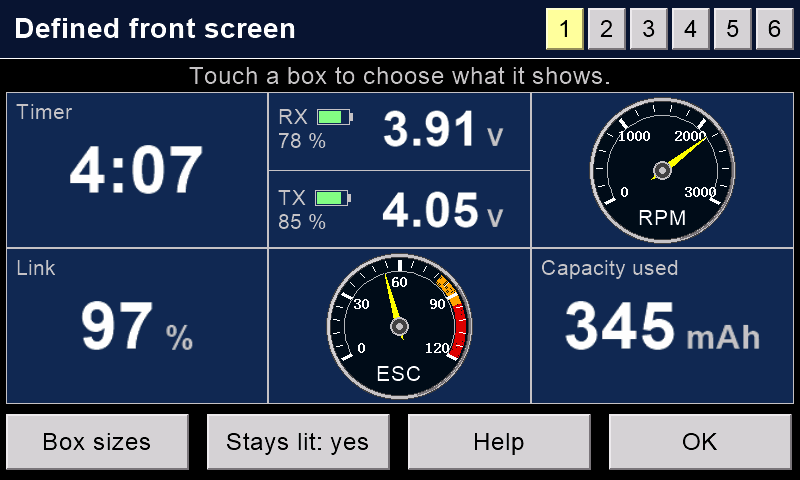
Your own front screen: big, clear numbers while you fly.
This page designs it. It shows the screen in use, live, as it would look in flight.
You can design six: one for the simulator, one for a helicopter, one for a glider, all ready at a touch.
Each keeps its own boxes, box sizes, box themes, dials and 'Stays lit'. The six are kept through switching off and updates.
Six ready-made
The six come ready-made, each with its own emphasis:
1 an overview, digits, one theme; 2 the head speed, a big dial, all dials, on black; 3 the timer, big digits, a colour a box; 4 the link and the frame rate as two dials over four digit boxes, one theme; 5 power - both batteries as dials, with current, capacity, ESC, all dials, a colour a box; 6 the model's picture and the channel bars, one light theme.
Change any box, or any screen, as you like.
The tabs
The tabs 1 to 6 at the top right choose the screen. The yellow tab is the one in use: touch another and it is in use at once, and the page shows its design.
The same tabs are on the defined front screen itself, so switching while you fly is one touch.
Boxes
Touch a box to choose what it shows: Timer, Batteries (RX and TX), Link, Frame rate, Head speed, ESC temperature, Current, Capacity used, Bank, Rate, Motor, AMS and trims, Clock, Model name, Model image, Channels 1-8, Channels 1-16 or Nothing.
Touch a choice and it is made at once.
'OK' goes back with no change.
A choice another box already shows is darker and carries that box's number, so nothing is chosen twice by mistake.
Box themes
In a box's chooser, press 'Theme'. A box takes any of the twelve themes; a theme other boxes already wear carries their numbers.
'Same as screens' gives it the screens' theme again.
'Apply to all boxes' gives every box of the screen this box's theme: one theme for the whole screen, in one touch.
A Motor box takes the safety's colours, as the original front screen's Motor box does, whatever its theme.
Round dials
In a box's chooser, 'Round dial: no' / 'yes' shows that box's number as a needle over a round scale, with no digits (the Clock and the Timer get hands). Timer, Batteries, Link, Frame rate, Head speed, ESC temperature, Current, Capacity used and Clock can be dials. A scale grows to hold the biggest value seen. A box too small for a dial keeps its digits: give it a bigger box. Dials carry amber and red zones where the box would turn amber or red; for Head speed, Current, Capacity used and Frame rate, 'Red zone' in the chooser sets where the red starts.
Box sizes
'Box sizes' offers twelve layouts, from one big box to nine small ones. The numbers grow with their boxes.
Box 1 is at the top left, and is always one of the biggest:
put what matters most there.
'Stays lit: yes' stops the screen going dark while your front screen shows and a model is connected (or you are flying).
Changes are kept as you make them. 'OK' closes the design page.
'Help' opens this page; 'Animation', top left, plays its film.
Which front screen shows
You choose on the front screens themselves:
'Defined screens' on the original brings yours;
'Original screen' on yours brings the original back.
The choice stays through take-offs, landings and switching off, until you press the other button.
On your screen, on the ground, tap a box twice quickly, or hold it for two seconds, to open its chooser there and then.
While the safety is off, this page closes, and will not open.
(With no safety switch: while the motor is on.)
Still stuck?
See common questions, or write to mmessiter@gmail.com. Say which page, and what the screen showed.