Backup and restore
The help for this page of the Version 2 transmitter, in its newest words. A transmitter on V2 B92 or older shows older words.
On the transmitter: Model setupRotorflightBackup / Restore
Keep a copy of this model's Rotorflight tune and set-up, every bank, on the transmitter's card, and put it back when you need to. Ports, LED, GPS and ESC settings are not included.
There is one backup for each model.
It needs a Version 2 receiver with Bluetooth, the safety on and the model disarmed. The two lines at the top say which backup is on the card, and which edits are waiting.
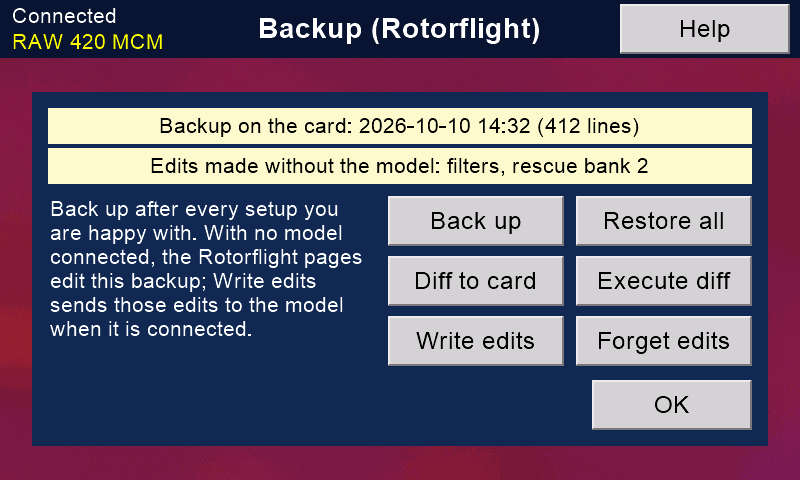
Back up
Connect the model first. Then press 'Back up', and 'OK' to the question. It reads everything from the flight controller, which takes about a minute. Do not move the bank switch while it runs.
Any older backup of this model is replaced.
It reads every bank's PIDs, advanced PIDs, rates, governor and rescue; then the governor global, mixer and its inputs, servos, mixer rules, motor and gear ratio, black box, filters, features, alignments, trims, battery and meters, receiver setup, channel map, failsafe, modes, RSSI, telemetry and RPM notches.
The in-flight adjustments are read (and restored) only with the USB cable in, from the receiver to the flight controller.
Restore all
With the model connected, press 'Restore all'. It writes every setting in the backup to the flight controller, one at a time.
Settings it already has are skipped, and each one written is read back to check. Then the flight controller stores them.
It restarts only for a changed governor global or motor setting.
What the model has now is replaced by the backup:
be sure it is the backup you mean.
'Restore all' shows only when there is a backup.
Diff to card
Asks the flight controller for all its settings as text (the command line's diff all), and keeps them on the screen's card in the folder /rfdiff, named after the model and the time.
The Rotorflight configurator can replay that file.
Afterwards the flight controller restarts; nothing is changed.
It needs the model on, the USB cable from the receiver to the flight controller, the safety on, the motor off, and the screen's Bluetooth joined (opening 'Rotorflight options' joins it).
Execute diff
Sends every command in this model's newest diff file to the flight controller's command line, then saves: the flight controller restarts with those settings.
You are asked first, with the file's name and its number of commands. Commands the flight controller refuses are counted and shown; the rest are saved all the same.
It needs the same as 'Diff to card'.
Edits without the model
With a backup on the card, every Rotorflight page opens with no model connected and shows the backup. 'Rotorflight options' then says 'From the backup file'. A 'Save' changes the backup, not the model, and marks that setting as an edit waiting.
Without a backup, the PIDs, rates and governor pages still open:
they show and keep the copies in the model memory.
Write edits
With the model connected again, press 'Write edits'. The marked edits are written to the flight controller and checked, and the marks go. You are also offered this when you open 'Rotorflight options' while connected, with edits waiting.
'Write edits' shows only when edits are waiting.
Forget edits
The marks go and nothing is written. The backup still holds the edited values ('Restore all' would write them) until the next 'Back up' replaces them.
Good to know
The backup and the diff files are found by the model's name.
Rename the model and its old ones are no longer found.
The command line itself is 'Command line ...' on 'Rotorflight options'.
Let each job finish before you press anything else.
'OK' goes back to 'Rotorflight options'.
Still stuck?
See common questions, or write to mmessiter@gmail.com. Say which page, and what the screen showed.